Downloads Custom Software Calculators Field Supplies About Contact Sign in

FOR CONSTRUCTION. BY CONSTRUCTION.

008 · SECTION BOX · FREE

SECTION
BOX

Select elements in any view, click once: a 3D view gets a section box fitted around them, padded by an offset on every face. It fits the geometry you can actually see — not inflated family bounding boxes — and one Ctrl+Z undoes it.

Version 1.0.0 · Revit 2023–2027 · Free — sign in with a free Fulcrum account

Work email in, ZIP out — no account to download. Prefer an installer? Get the code-signed .exe. Every build’s SHA-256 is published.

Prefer to read first? Grab the how-to guide (PDF).

Any view → 3D box Offset on all six faces Fits visible geometry Host + linked elements One Ctrl+Z to undo
SHEET 01 · WHAT IT DOESSELECT · CLICK · BOXEDREV A
What it does

Select it anywhere. Box it in 3D.

Pick elements in a plan, section, elevation or 3D view and click once. A 3D view gets a section box fitted around them, padded by an offset on every face.

QUICK SECTION BOX — REVIT {3D}
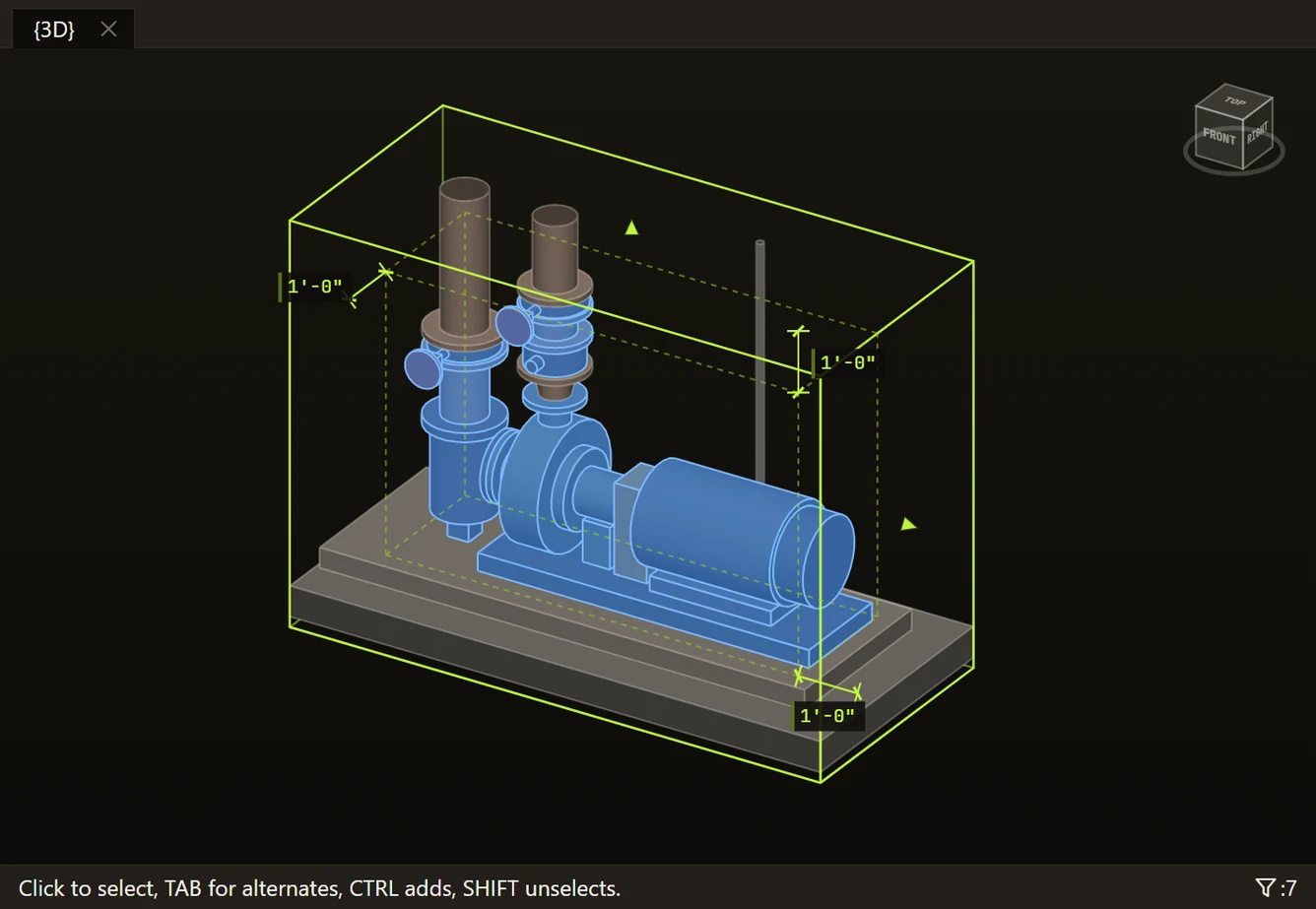
Select in the model, click Quick Section Box: the box closes in around the selection, padded by the offset — 1'-0" here — on every face.
  • Works from any view — you don't need to be in 3D to make the selection
  • Boxes the active 3D view, an existing one, a new one, or this project's remembered default
  • The offset goes on every face, typed in the project's units
  • Your selection stays selected, and one Ctrl+Z undoes the box
SHEET 02 · TWO BUTTONSAUTO · QUICKREV A
The buttons

Two buttons. One asks, one doesn't.

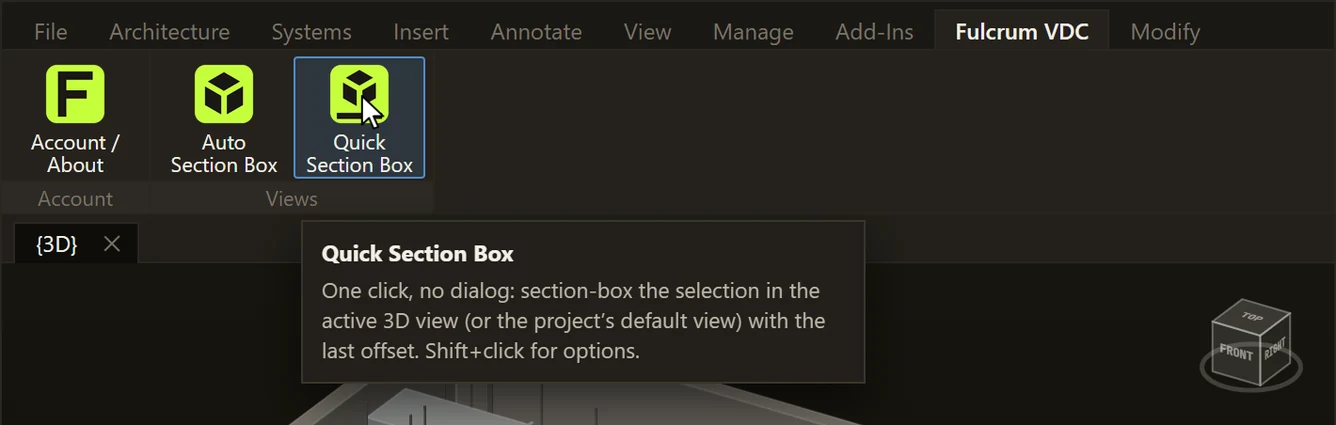
Both live on the Fulcrum VDC tab, in the Views panel.

Button 01 · Dialog

Auto Section Box

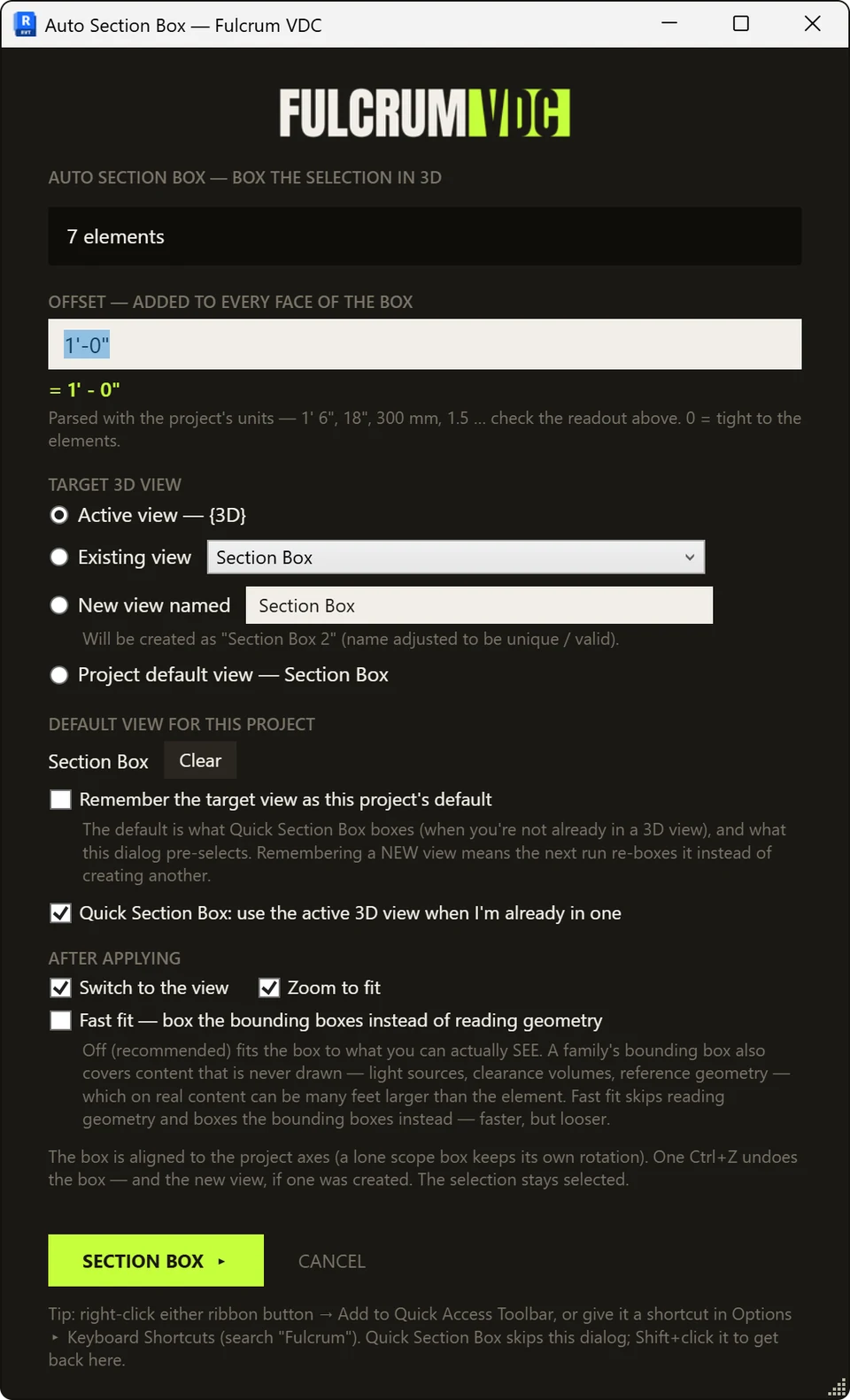
Opens the options dialog every time — pick the target 3D view, set the offset, and choose what happens after the box is applied.

Button 02 · No dialog

Quick Section Box

Uses your last offset. Boxes the active 3D view if you're already in one (a setting, on by default), otherwise the project's default 3D view. Shift+click it to open the dialog instead.

If no 3D view is active and the project has no default yet, Quick Section Box opens the dialog with a note — it never creates a view on its own. Pick a target once, tick “Remember…”, and it's set.

Both are plain Revit buttons: right-click → Add to Quick Access Toolbar, or give them a keyboard shortcut in Revit Options → User Interface → Keyboard Shortcuts (search “Fulcrum”).

SHEET 03 · HOW IT WORKSSELECT · TARGET · APPLYREV A
How it works

One dialog, top to bottom.

Auto Section Box walks the same order every time. Quick Section Box goes straight to the result with your last settings.

01

Select

Select model elements in any view — host or linked, tags, or a scope box. Annotation, 2D and datum items are skipped, and the dialog tells you how many.

02

Pick the target 3D view

The active view (when you're in a 3D view), an existing 3D view from a list, a new view with a unique name, or the project default view. Tick “Remember the target view as this project's default” to reuse it next time.

03

Set the offset

Added to every face of the box. Type it the way Revit does, in the project's units — 1' 6", 18", 300 mm, 1.5 — and a live readout shows how it was read. 0 is tight to the elements.

04

Apply

Choose whether to switch to the view and zoom to fit. Your selection stays selected, and one Ctrl+Z undoes the box — and the new view, if one was created.
SHEET 04 · WHAT YOU'LL SEEILLUSTRATEDREV A
Dialog · result · ribbon

What you'll see.

AUTO SECTION BOX — OPTIONS
Illustration of the Auto Section Box options dialog with 7 elements selected: the offset field with its live readout, the target 3D view choices (active view, an existing view, a new view, or the project default), the project's default view with a Clear button, and the after-applying options
Illustration of the options dialog — offset, target view, project default, and what happens after
RESULT
Illustration of a 3D view with a section box fitted around a selected pump assembly, padded by a one-foot offset on every face, with the selection still highlighted
Illustration of the result — the boxed 3D view, 1'-0" offset on every face, selection still selected
RIBBON
Illustration of the Fulcrum VDC ribbon tab: Account / About, then Auto Section Box and Quick Section Box in the Views panel, with the Quick Section Box tooltip: one click, no dialog, Shift+click for options
Illustration of the ribbon — Auto and Quick Section Box in the Views panel, with Quick's tooltip
SHEET 05 · WHAT YOU CAN SELECTHOST · LINKS · TAGSREV A
What you can select

More than model elements.

  • Model elements, in any view. Plan, section, elevation or 3D.
  • Elements inside a linked model. Tab-select them; the box is placed in the host's coordinates.
  • A whole linked model. Select the link instance and the box goes around it.
  • Tags. The box goes around the element the tag points at, host or linked. Room, space and area tags box their room, space or area.
  • A single scope box. The section box takes its shape and rotation, plus your offset — set the offset to 0 to match it exactly.
  • Annotation is skipped. Text, dimensions, grids, levels and other 2D or datum items are left out, and the dialog tells you how many were skipped.
SHEET 06 · THE DETAILSFIT · DEFAULTS · UNDOREV A
The details

A tight box, a remembered view, a clean undo.

  • Fits what you can see. By default the box fits the visible solids — not the family's bounding box, which also covers content Revit never draws, like light sources and clearance zones, and can make a box many feet too big. Linked models and groups use their bounding box. Geometry is read for up to 500 elements and about 1.5 seconds; a larger selection, or whatever is left when the time runs out, uses bounding boxes.
  • Fast fit, if you want it. Off by default, it skips reading geometry and boxes the bounding boxes instead — faster, but looser.
  • Aligned to the project. The box is aligned to the project axes; a lone scope box keeps its own rotation.
  • Sensible offsets. The first-run default is 1'-0" in imperial projects or 300 mm in metric ones. Negative offsets are allowed — they cut into the selection — and the box never shrinks below 1" per side.
  • Your default, not the model's. The project default view is remembered per user, per saved project, on your PC (%APPDATA%\Fulcrum\auto-section-box.json) — in a project that hasn't been saved yet, “Remember…” is unavailable until you save it. Nothing is written into the model, teammates keep their own defaults, and Clear forgets it. When a project has no default yet and you make a new view, “Remember…” is pre-ticked — so the next run re-boxes that same view instead of making another one.
  • Careful with shared views. If the target 3D view is locked, it asks before unlocking. In a workshared model it won't touch a view another user owns — it tells you. And if everything you selected (up to 200 elements in your own model) is hidden in the target view — hidden in the view, or its category turned off — it tells you.
SHEET 07 · INSTALLNO ADMINREV A
Requirements & install

Per-user install. No admin rights.

  • Autodesk Revit 2023, 2024, 2025, 2026 or 2027 on Windows.
  • A free Fulcrum account. Sign in inside Revit: Fulcrum VDC tab → Account / About → Sign In (it keeps you signed in for up to 30 days). No trial, no card. Create the account at hub.fulcrumvdc.com.
  • An internet connection when you use it. Each run checks your free license with Fulcrum Hub (a passing check is reused for 10 minutes); offline, it won't run.
  • Close Revit first. If the installer says Revit is open, close Revit fully and re-run it.
  • Installs only this tool. Section Box plus the Account / About button — no other Fulcrum apps.
  • ZIP or .exe. The installer ZIP is the primary download; a code-signed .exe is also available.
  • Uninstall. Run the installer again → Uninstall, or run UNINSTALL.cmd from the ZIP.

Buttons missing after install? With the .exe, make sure your Revit version was ticked. With the ZIP, close Revit, run INSTALL.cmd again and check that the “Installed for:” line lists your version. Then restart Revit. A diagnostic log is written to %APPDATA%\Fulcrum\auto-section-box.log. Still stuck? Send us a message.

SHEET 08 · FAQSTRAIGHT ANSWERSREV A
FAQ

Questions, answered.

What can I select?

Model elements in any view — plan, section, elevation or 3D. Also elements inside a linked model (Tab-select them; the box is placed in the host's coordinates), a whole linked model instance, tags (the box goes around the element the tag points at; room, space and area tags box their room, space or area), and a single scope box: the section box takes its shape and rotation, plus your offset — set the offset to 0 to match it exactly. Annotation, 2D and datum items such as text, dimensions, grids and levels are skipped, and the dialog tells you how many were skipped.

What's the difference between Auto Section Box and Quick Section Box?

Auto Section Box opens the options dialog every time. Quick Section Box skips the dialog: it uses your last offset and boxes the active 3D view if you're already in one (a setting, on by default), otherwise the project's default 3D view. If neither exists it opens the dialog with a note — it never creates a view on its own. Shift+click Quick Section Box to open the dialog.

Why doesn't it just use bounding boxes?

A family's bounding box also covers content Revit never draws, like light sources and clearance zones, which can make it many feet too big. So by default the box fits the visible solids. Linked models and groups use their bounding box. Geometry is read for up to 500 elements and about 1.5 seconds; a larger selection, or whatever is left when the time runs out, uses bounding boxes. Fast fit (off by default) skips reading geometry and boxes the bounding boxes instead — faster, but looser.

Is the default view saved in the model?

No. The project's default view is remembered per user, per saved project, on your PC, in %APPDATA%\Fulcrum\auto-section-box.json. Nothing is written into the model, so teammates keep their own defaults. Clear forgets it.

Can I undo it? What about locked or workshared views?

One Ctrl+Z undoes the box — and the new view, if one was created. If the target 3D view is locked, it asks before unlocking. In a workshared model it won't touch a view another user owns; it tells you instead.
Which Revit versions are supported?

Revit 2023, 2024, 2025, 2026 and 2027, on Windows.

Is it free? Do I need an account?

It's free. You need a free Fulcrum account and sign in inside Revit: Fulcrum VDC tab → Account / About → Sign In (it keeps you signed in for up to 30 days). No trial, no card. It needs an internet connection when you use it — each run checks your free license with Fulcrum Hub.

SmartScreen warned me about the download.

The .exe is code-signed as Fulcrum VDC, LLC, so Windows names us as the publisher instead of showing “Unknown Publisher.” SmartScreen can still flag a brand-new build until enough people have downloaded it — choose More info → Run anyway. Confirm the signature under Properties → Digital Signatures.

SHEET 09 · RELEASE NOTESREV 1.0.0REV A
Release notes · 2026-09-26

1.0.0 — first public release.

Every tool's full revision history lives in the changelog.

  • Auto Section Box and Quick Section Box buttons — pin either to the Quick Access Toolbar or give it a keyboard shortcut.
  • Target the active, an existing, a new, or the project's remembered default 3D view.
  • Offset on every face, typed in project units; negative offsets allowed.
  • Fits visible geometry, not inflated family bounding boxes, for up to 500 elements / about 1.5 seconds; a Fast fit option trades tightness for speed.
  • Linked elements, tags and scope boxes (rotation kept) supported.
  • One-step undo, an unlock prompt for locked views, and a workshared ownership check.
  • Revit 2023–2027. Free with a Fulcrum account; needs an internet connection when you use it.
Free download

Box what you selected.

Any view, one click — a 3D section box with the same offset on every face.

Download free

Autodesk and Revit are trademarks of Autodesk, Inc. Fulcrum VDC, LLC is not affiliated with or endorsed by Autodesk.