
ICON
SWAPPER
Revit 2024, 2025, 2026 and 2027 pinned side by side look the same. Icon Swapper puts the release year on the shortcut icons of your installed Autodesk applications — taskbar pins, Start Menu, desktop — so you can tell them apart at a glance. It backs up each shortcut before its first change and can put the original icons back.
Version 1.0.0 · Signed by Fulcrum VDC, LLC · Windows 11 · Free — no account required
Work email in, ZIP out — no account to download. Prefer the bare .exe? Get the code-signed .exe. Every build’s SHA-256 is published.
Prefer to read first? Grab the how-to guide (PDF).
The release year, on the icon.
A standalone Windows utility, not a Revit add-in. It finds the Autodesk shortcuts on your taskbar, Start Menu and desktop and gives each one an icon that carries its release year. One window, and a way back.
- Taskbar pins, the Start Menu for all users and for your account, your desktop and the Public Desktop
- 160 year icons built in: 20 applications × release years 2023–2030
- Changes only the icon of a shortcut that already exists — what the shortcut starts is never touched
- Backs up each shortcut before its first change, and reads every change back from disk
- Revert checked and Revert everything put the original icons back
- No account, no sign-in, no license check, no telemetry — the program makes no network requests
One window, top to bottom.
Scanning only reads. Nothing changes until you click APPLY TO CHECKED.
Download & run
Extract the ZIP and double-click the .exe. That one file is the whole program: nothing is installed. Start it the normal way, not with Run as administrator.
It lists your Autodesk shortcuts
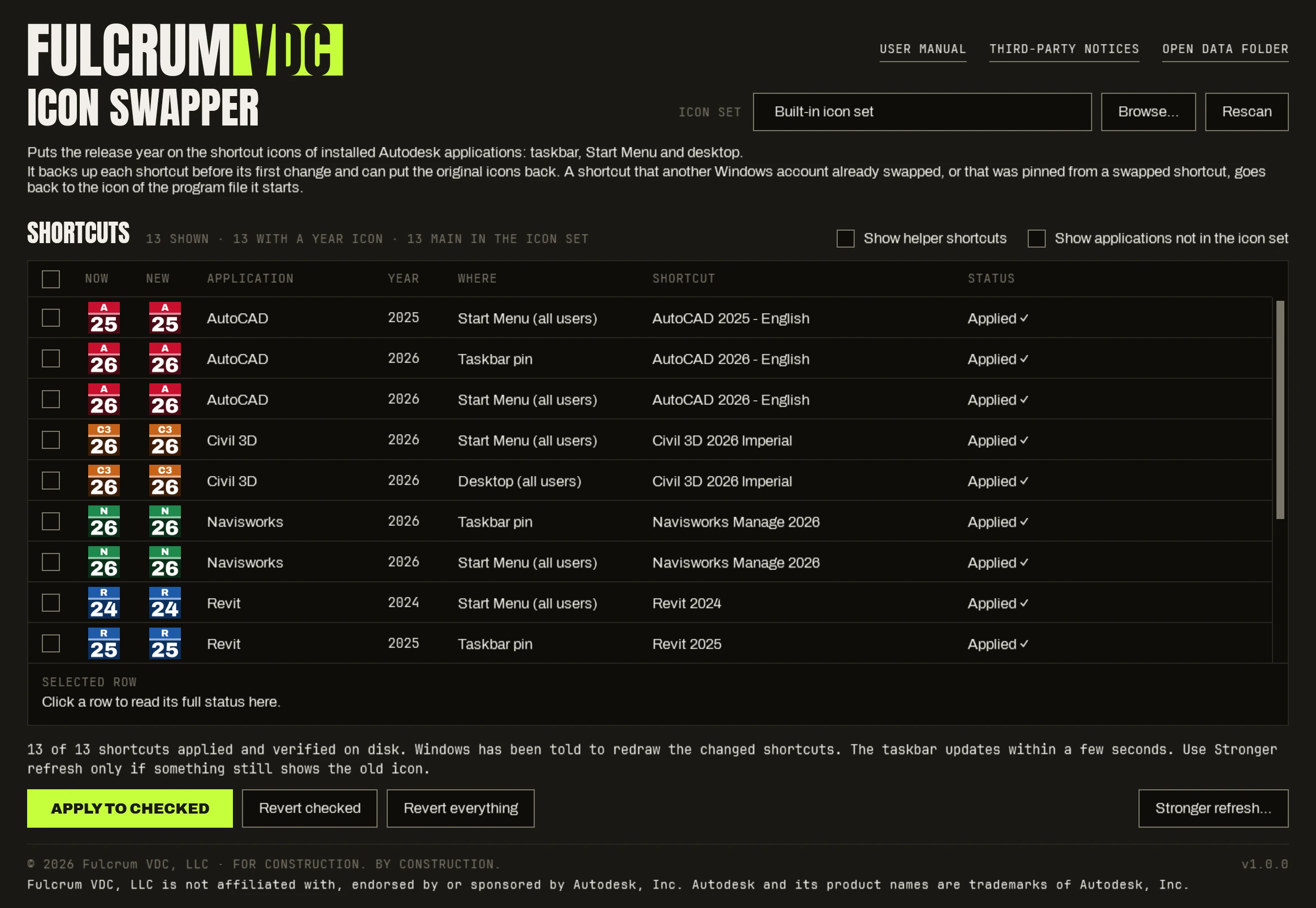
Each row shows the application, the release year, where the shortcut is, the icon it has now and the year icon it would get. The application's own shortcuts start checked. Helper shortcuts — viewers, option editors, migration tools — are hidden until you tick Show helper shortcuts, and start unchecked.
APPLY TO CHECKED
Each checked shortcut that still has its original icon is copied to a backup folder first, and its original icon is recorded. Then only its icon is changed, in place, under the same file name — the same edit as Windows' own Properties → Change Icon.
One administrator prompt, if needed
Your own taskbar pins, Start Menu and desktop need no administrator rights. Shortcuts for all users — the all-users Start Menu and the Public Desktop — need one approval per run, and Windows asks. Answer No and those rows are left unchanged: “Not changed - elevation was declined”.
Verified, then refreshed
Every shortcut it touched is read again from disk, and the Status column is written only from that check: “Applied ✓”, or “Not changed - ” with the reason. Windows is then told to redraw the changed shortcuts. The taskbar updates within a few seconds, with no Explorer restart.
Revert, whenever
Revert checked puts the original icon back on the rows you check. Revert everything does it for every shortcut that has a year icon, including rows the filters hide, and asks first. Reverts are verified the same way.
What you'll see.
The real window, drawn by the program's demo view with thirteen sample rows. In these pictures a grey lettered tile stands for the icon a shortcut has now; on your PC that column shows the real icon.


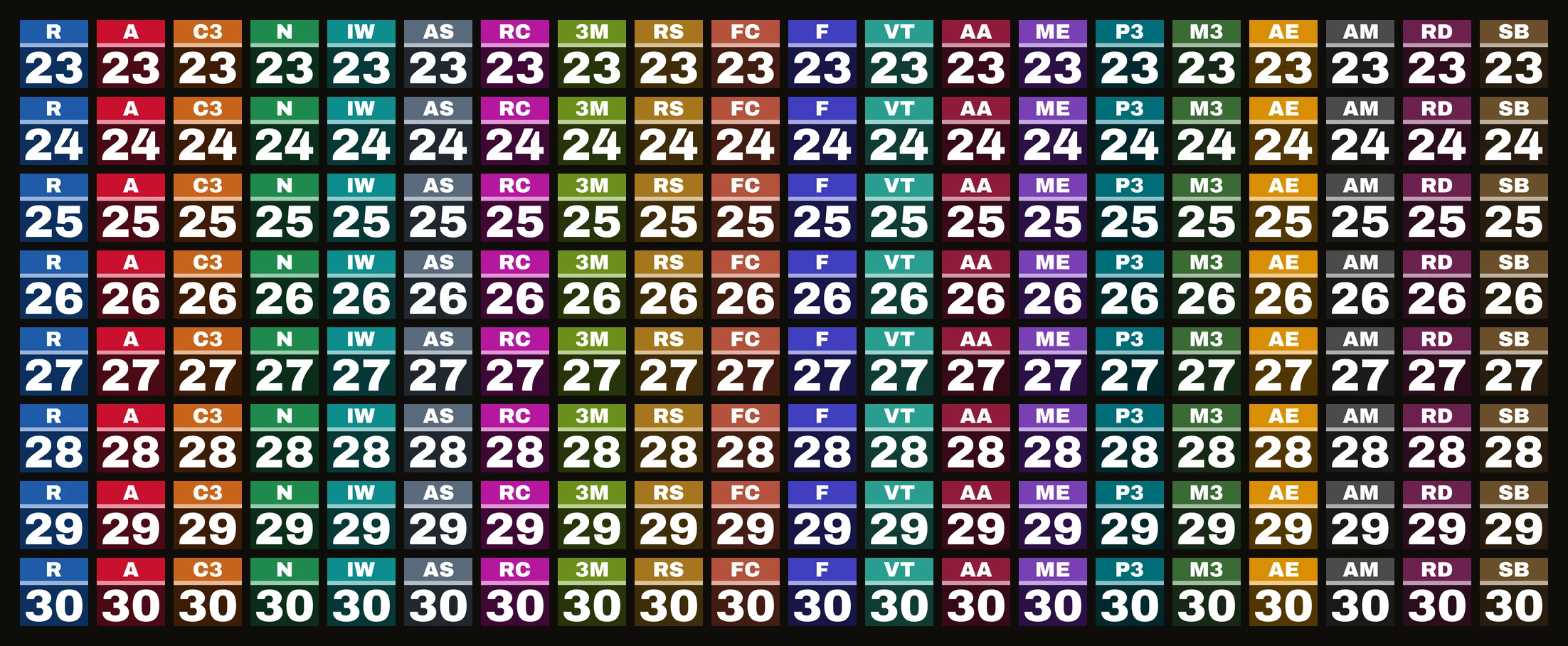
160 icons, drawn by Fulcrum.
Twenty applications, eight release years each. One color, one bar and one letter mark per application; the two-digit year is the large element, sized to stay readable at taskbar size.
- RRevit
- AAutoCAD
- C3Civil 3D
- NNavisworks
- IWInfraWorks
- ASAdvance Steel
- RCReCap Pro
- 3M3ds Max
- RSRobot Structural Analysis Professional
- FCFabrication CADmep
- FFormIt Pro
- VTVehicle Tracking
- AAAutoCAD Architecture
- MEAutoCAD MEP
- P3AutoCAD Plant 3D
- M3AutoCAD Map 3D
- AEAutoCAD Electrical
- AMAutoCAD Mechanical
- RDAutoCAD Raster Design
- SBStructural Bridge Design
- Fulcrum's own artwork. The icons are typeset by Fulcrum — a colored tile, a lighter bar, a letter mark and the year. They are not Autodesk's icons.
- One template per application. Color, bar and letters are identical for every release year of an application. Only the two digits change.
- Square and solid. No rounded corners and no transparency, so nothing shows through on a dark taskbar.
- Ten sizes in every icon. Each .ico carries its own frames from 16 to 256 px, so Windows has a native size for the taskbar, the Start Menu and large desktop icons.
- Built into the program. The whole set is inside the .exe. There is no icon folder to keep beside it.
- Or use your own. Browse… takes a folder of your own icons laid out the same way —
revit\revit-2025.icoand so on. Clear the box and press Rescan to go back to the built-in set. - Not in the set. Tick Show applications not in the icon set and other Autodesk shortcuts, such as AutoCAD LT, are listed as “Not in the icon set”. There is no year icon to give them. A release year outside 2023–2030 has no icon either.
The icon. Nothing else about the shortcut.
What it changes
- The icon of each shortcut you apply. Only the shortcut's icon location is rewritten, in place, under the same file name. Apply changes only the rows you check.
- On Revert, the shortcut as it was. One of your own shortcuts is put back from its backup copy where the copy still matches it, so anything else you changed on that shortcut after Apply goes back too. An all-users shortcut gets its icon back and nothing else. See Limits.
- One folder of its own.
C:\ProgramData\FulcrumVDC\IconSwapperholds the year icon files your shortcuts point at, shared by every account on the PC, and one folder per Windows account with that account's shortcut backups, record of changes and log. Only that account, Administrators and SYSTEM can open an account's folder. - Only when you ask: Explorer and the icon cache. Stronger refresh restarts Windows Explorer and deletes the Windows icon cache files, for a shortcut that still shows the old icon. It asks first. Apply and Revert never do this.
What it never touches
- What a shortcut starts. Target, arguments and working folder stay as they are. Apply leaves the hotkey and taskbar identity alone as well. Pins stay pinned, in the same order.
- Autodesk's program folders. Nothing inside them is changed. The applications themselves are not modified.
- The registry. Nothing is written to it.
- The network. The program makes no network requests: no sign-in, no license check, no telemetry, no update check. USER MANUAL opens the guide built into the program; if that copy cannot be opened, it hands the guide's download address to your browser instead.
- A shortcut it could not put back. If the icon a shortcut has now is not on a fixed local drive, or is not a plain local path, Apply skips that shortcut: no backup, no record, no change. The row says why.
- Administrator rights it does not need. The window runs without elevation. Only shortcuts for all users go through a short-lived elevated copy of the program, which checks every change again and accepts one thing: changing the icon of an existing all-users shortcut that starts a program in an Autodesk folder.
What it can't do, and what Windows decides.
Measured on one Windows 11 PC (version 26H2). Read these before you rely on it across a team.
- Which shortcuts are found. It reads the shortcut files Windows keeps for your taskbar pins and Start pins, the Start Menu for all users and for your account, and your desktop and the Public Desktop with one level of folders on each. A desktop shortcut more than one folder deep, or a shortcut kept anywhere else, is not listed.
- Pinning cannot be automated. On Windows 11 a program cannot pin an application for you. Icon Swapper changes pins you already have: pin the application yourself, click Rescan, then Apply.
- A running application that is not pinned. It has no pin for the tool to change, and what its taskbar button shows while it runs is up to Windows. Pin the applications you want to tell apart.
- A running application that is pinned. In the default “combine taskbar buttons” mode, a running Navisworks stayed grouped on its pin and kept the year icon. With “Never combine taskbar buttons”, Windows shows each window's own icon while the application runs.
- AutoCAD-based applications of one year share a taskbar button. AutoCAD, AutoCAD MEP, AutoCAD Mechanical and AutoCAD Architecture of the same year all run the same acad.exe. Windows groups running windows by program file, so whichever one you pinned is the button they all light up.
- Fabrication CADmep's pin never lights up. Its launcher hands off to acad.exe, so a running CADmep appears under the AutoCAD button. The CADmep pin shows its year icon only while idle.
- A shortcut another Windows account swapped. Records and backups are kept per Windows account. If another account on the PC already put a year icon on an all-users shortcut, or you pinned from a shortcut that was already swapped, your account has no record of the original. Revert gives that shortcut the icon of the program file it starts — for an AutoCAD-based application, the plain AutoCAD icon, not the one its installer put on the shortcut. The row tells you before you revert. Once another account has reverted an all-users shortcut, neither account gets the installer's icon back through Icon Swapper; an Autodesk repair brings it back.
- Revert restores the whole shortcut, where it can. One of your own shortcuts is reverted by copying its backup over it when the backup still describes it. A hotkey, comment, window style or “Run as administrator” setting you changed on it after Apply goes back as well.
- Autodesk repairs and updates. An Autodesk repair or update can recreate a shortcut with its stock icon. The row then reads “Changed by something else since it was applied here (backup kept)”. Click Rescan, then Apply.
- Icons that could not be put back. A shortcut whose current icon is on a network share, a removable or optical drive, or a drive letter that does not exist is skipped, because Revert could not restore that icon.
- Eight of the twenty applications were checked on real shortcuts. Revit, AutoCAD, AutoCAD Architecture, AutoCAD MEP, AutoCAD Mechanical, Navisworks, Fabrication CADmep and ReCap Pro, on a PC with releases from 2024 to 2027. The other twelve are recognized by rule and have not been checked against an installed copy. If one of them is missing from the list, tick both filters — it may be listed as a helper or as “Not in the icon set” — and tell us.
- English shortcut names. Applications are recognized first by the program file and the options a shortcut starts it with, which do not depend on language. Where it falls back to the shortcut's name, it assumes English names.
- Twenty applications, 2023–2030. A shortcut for another Autodesk application, or for a release year outside that range, gets no icon.
- Windows 11 only. It is the only version the program has been run on.
One file. Nothing to install.
- Windows 11. The program needs .NET Framework 4.8, which is part of Windows 11 — there is nothing to add.
- Autodesk applications already installed. Icon Swapper changes the shortcuts their installers made, and the pins you made from them.
- No account, no sign-in, no internet connection. The download page asks for a work email, like every Fulcrum download. The program itself asks for nothing and connects to nothing.
- ZIP or .exe. The ZIP is the primary download: extract it and double-click the .exe. The same code-signed .exe is also available on its own. There is no Setup program.
- Start it the normal way. Do not use Run as administrator. The program asks for administrator permission on its own, and only for shortcuts that belong to all users.
- Keep the .exe somewhere only you can write to. Your Downloads or Documents folder is fine; a shared folder is not.
- One window at a time. Starting it again brings the first window forward.
- To remove it. Click Revert everything, then delete the .exe. There is no uninstaller, because nothing was installed. Shortcuts that show a year icon point at files under
C:\ProgramData\FulcrumVDC\IconSwapper, so leave that folder alone until they are reverted.
Something not as expected? OPEN DATA FOLDER, top right, opens your
account's folder: the shortcut backups, the record of changes and
the log, logs\icon-swapper.log. Click a row to read its
full status under the list. Still stuck?
Send us a message.
Questions, answered.
What does Icon Swapper change?
Only the icon of shortcuts that already exist: taskbar pins, Start Menu shortcuts and desktop shortcuts for installed Autodesk applications. Each shortcut keeps its file name and its place, so pins stay pinned, in the same order. What a shortcut starts is never changed: its target, arguments and working folder stay as they are. Apply leaves its hotkey and taskbar identity alone as well. Nothing inside an Autodesk program folder is touched.
Which applications and years have an icon?
160 icons: 20 applications for each release year from 2023 to 2030. The applications are Revit, AutoCAD, Civil 3D, Navisworks, InfraWorks, Advance Steel, ReCap Pro, 3ds Max, Robot Structural Analysis Professional, Fabrication CADmep, FormIt Pro, Vehicle Tracking, AutoCAD Architecture, AutoCAD MEP, AutoCAD Plant 3D, AutoCAD Map 3D, AutoCAD Electrical, AutoCAD Mechanical, AutoCAD Raster Design and Structural Bridge Design. Other Autodesk shortcuts, such as AutoCAD LT, can be listed, but there is no year icon to give them.
Can I get the original icons back?
Yes. Before a shortcut is changed for the first time it is copied to a backup folder and its original icon is recorded. Revert checked puts the original icon back on the rows you check. Revert everything does it for every shortcut that has a year icon, and asks first. Each revert is checked by reading the shortcut again. The exception is a shortcut that another Windows account on the PC has swapped or reverted, or a pin made from a swapped shortcut: your account has no record of the icon its installer gave it. Revert gives it the icon of the program file it starts. For an AutoCAD-based application that is the plain AutoCAD icon.
Why does Windows ask for administrator permission?
Shortcuts in the all-users Start Menu and on the Public Desktop belong to every account on the PC, and Windows lets only an administrator change them. Icon Swapper asks once per run of Apply or Revert, and only when such shortcuts are part of the run. If you answer No, those rows are left unchanged and say Not changed - elevation was declined. Your own taskbar pins, Start Menu and desktop shortcuts are still done. Start the program the normal way, not with Run as administrator.
Does it need an account or an internet connection?
No. There is no account, no sign-in and no license check, and the program makes no network requests: no telemetry and no update check. The download page asks for a work email, like every Fulcrum download. After that it runs offline.
Is anything installed? How do I remove it?
Nothing is installed. Icon Swapper is one portable .exe of about 7.5 MB with no Setup program. It needs .NET Framework 4.8, which is part of Windows 11. To remove it, click Revert everything, then delete the .exe. Its backups, its record of changes, its log and the year icon files are normally kept under C:\ProgramData\FulcrumVDC\IconSwapper. Shortcuts that show a year icon point at files in that folder, so revert before you delete it.
The taskbar still shows the old icon.
Apply and Revert tell Windows to redraw the changed shortcuts, and the taskbar updates within a few seconds. If a shortcut still shows the old icon, Stronger refresh restarts Windows Explorer and clears the Windows icon cache. It asks first: the taskbar and desktop disappear for a few seconds and open File Explorer windows close. If an Autodesk repair or update put the stock icon back on a shortcut, click Rescan, then Apply to checked.
Why do my AutoCAD-based applications share one taskbar button?
That is how Windows groups running programs, and an icon cannot change it. AutoCAD, AutoCAD MEP, AutoCAD Mechanical and AutoCAD Architecture of the same year all run the same acad.exe. Windows groups running windows by program file, so whichever one you pinned is the button they all light up. Revit has one program file per year, and Navisworks is separate too. With Never combine taskbar buttons, Windows shows each window's own icon while the application runs.
Can it pin applications for me?
No. On Windows 11 pinning cannot be automated. Icon Swapper changes the pins and shortcuts you already have: pin the application yourself, click Rescan, then Apply to checked. A pin made from a Start Menu shortcut that already has a year icon carries the year icon from the start.
Is this Autodesk software? Are these Autodesk's icons?
No. Icon Swapper and its 160 year icons are made by Fulcrum VDC. The icons are our own artwork, a colored tile with a letter mark and the two-digit year, not Autodesk's icons. Autodesk product names are used only to say which applications the icons are for. Fulcrum VDC, LLC is not affiliated with or endorsed by Autodesk.
Which Windows versions are supported?
Windows 11. It is the only version Icon Swapper has been run on, so it is the only one we list.
SmartScreen warned me about the download.
The .exe is code-signed as Fulcrum VDC, LLC, so Windows names us as the publisher instead of showing “Unknown Publisher”, in SmartScreen and in the administrator prompt. SmartScreen can still flag a brand-new build until enough people have downloaded it: choose More info → Run anyway. Confirm the signature under Properties → Digital Signatures. If an administrator prompt for Icon Swapper shows an unknown publisher, answer No.
1.0.0 — first public release.
Every tool's full revision history lives in the changelog.
- Lists the Autodesk shortcuts on the taskbar, Start Menu and desktop, with the application and release year worked out for each.
- 160 built-in year icons: 20 applications × release years 2023–2030.
- APPLY TO CHECKED: a shortcut that still has its original icon is backed up first, only the icon is changed, in place, and every change is read back from disk.
- Revert checked and Revert everything put the original icons back.
- One administrator approval per run for shortcuts that belong to all users; if it is declined, those rows are left unchanged.
- Records and backups are kept per Windows account.
- Browse… uses a folder of your own icons instead of the built-in set.
- Stronger refresh restarts Windows Explorer and clears the icon cache, for a shortcut that still shows the old icon.
- Windows 11. Free. No account, no sign-in, no license check, no telemetry; the program makes no network requests. One portable .exe with no Setup program.
Put the year on the icon.
One .exe, no account. Each shortcut is backed up before its first change — Revert everything puts the original icons back.
Download freeAutodesk and the Autodesk product names on this page, including Revit, AutoCAD, Civil 3D and Navisworks, are trademarks of Autodesk, Inc. They are used here only to say which applications the icons are for. The year icons are Fulcrum VDC's own artwork, not Autodesk's. Fulcrum VDC, LLC is not affiliated with or endorsed by Autodesk.