
CONDUIT
COLORS
Click a parameter and every value in the model is listed and counted. Tick the values, set the colors, click APPLY: one view filter per value, added to every view and view template you choose, in one step. Or split a length parameter into elevation bands, seeded from your levels.
Version 1.0.0 · Revit 2023–2027 · Free — sign in with a free Fulcrum account
Work email in, ZIP out — no account to download. Prefer an installer? Get the code-signed .exe. Every build’s SHA-256 is published.
Prefer to read first? Grab the how-to guide (PDF).
One view filter per value. Every view at once.
Pick what to color by, tick the values, set the colors, click APPLY. Conduit Colors builds the view filters and adds them, with their color overrides, to the views and view templates you choose.
- Conduit and conduit fittings to start; presets for conduit runs only, cable tray, electrical, piping and duct — or tick your own categories
- Color by any parameter Revit can filter those categories by; each value is listed with its element count
- Elements with no value get their own “(No value)” row, left unticked until you tick it
- A length parameter can be split into elevation bands — the boundaries seed from the model's levels and are fully editable
- Filters go to all views and view templates, or only the ones you select
- The setup is saved in the project on APPLY, so the next run starts where you left off
One window, top to bottom.
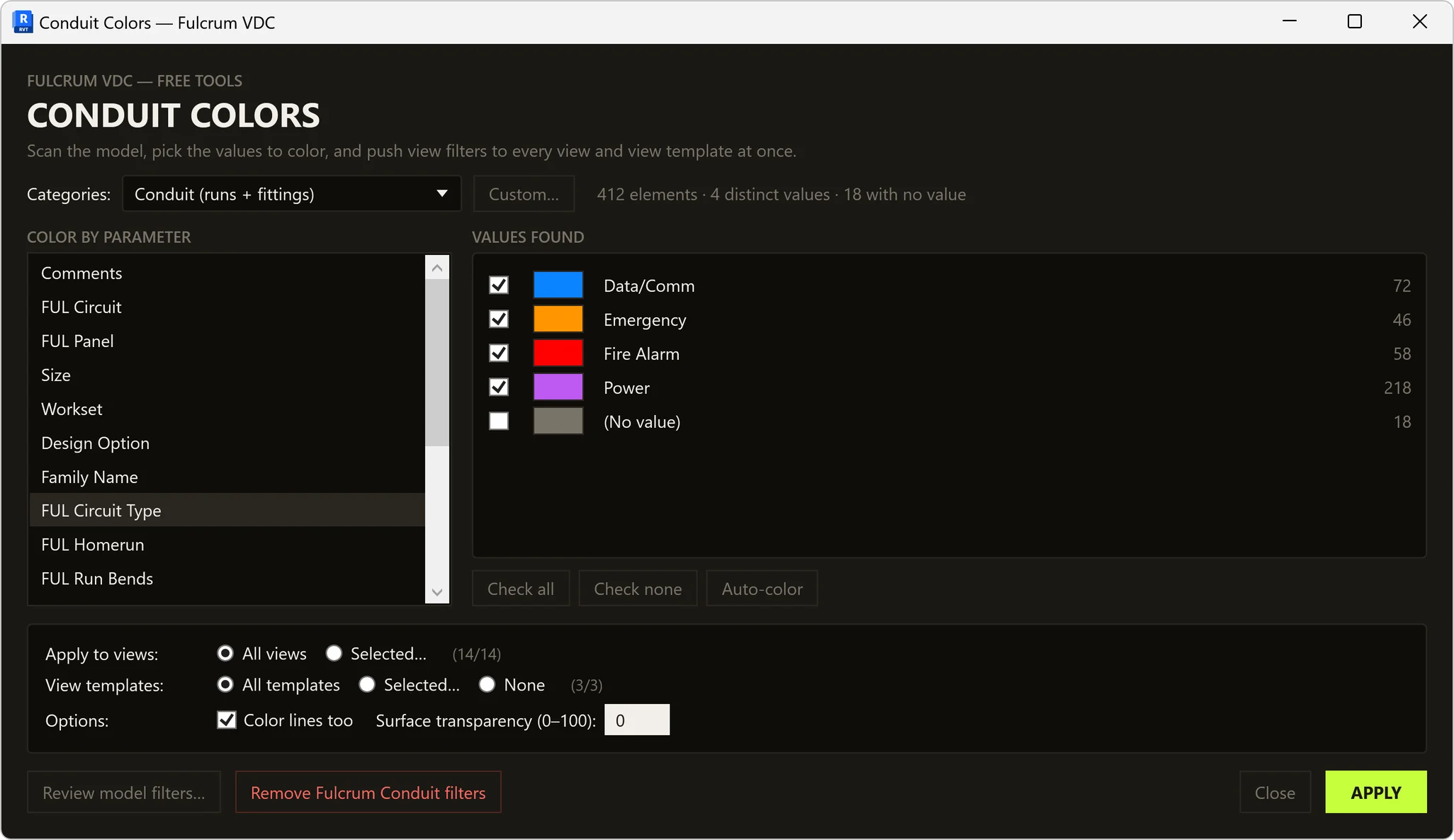
Click Conduit Colors on the Fulcrum VDC tab, in the Electrical panel. Scanning only reads the model; the filters are created when you click APPLY.
Categories
Starts on Conduit (runs + fittings). The other presets are Conduit runs only, Cable tray (runs + fittings), Electrical — all, Piping (runs + fittings + accessories) and Duct (runs + fittings + accessories). Custom… opens a tick list of every model category Revit can filter.
Color by parameter
The list is what Revit's own filter dialog would offer for those categories — only parameters that every chosen category has. Click one and the model is scanned: each distinct value appears with its element count. On a first run in a project the first parameter in the list is already selected — Comments in the demo — so click the one you want.
Values and colors
Every value found is ticked and given a seed color; “(No value)” starts unticked. Untick what you don't want colored. Click a swatch to pick a color: R, G and B sliders, a hex box, or a palette of the 48 basic Windows colors. Check all, Check none and Auto-color sit under the rows.
Or elevation bands
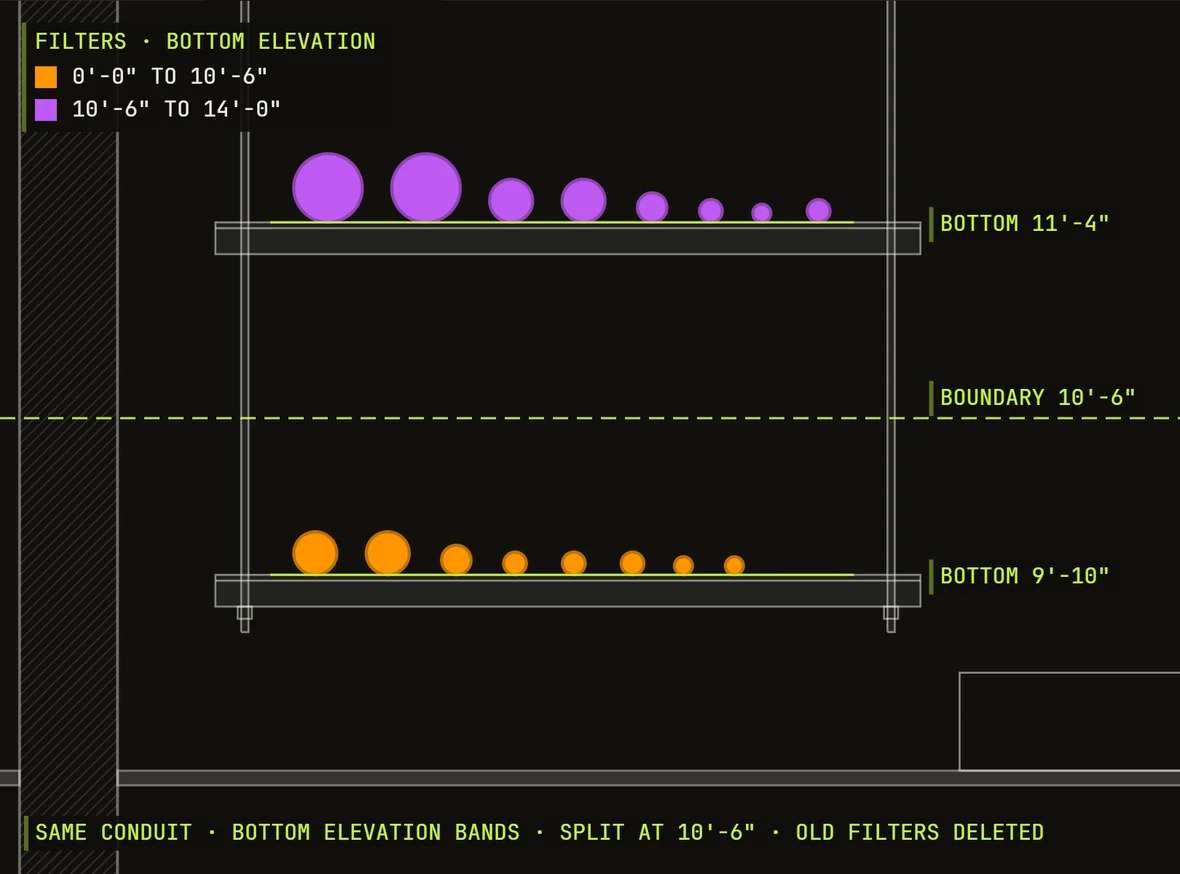
Choose a length parameter and two options appear: Distinct values and Elevation bands. Bands start from the model's levels. Type a boundary — 12'-6", 12.5' or 150" — and press Enter to add it; select one and click Remove selected to drop it. Each band gets its own row, tick and color.
Where it applies
Apply to views: All views, or Selected… for a searchable tick list. View templates: All templates, Selected… or None. Options: Color lines too, on by default, and Surface transparency from 0 to 100.
APPLY
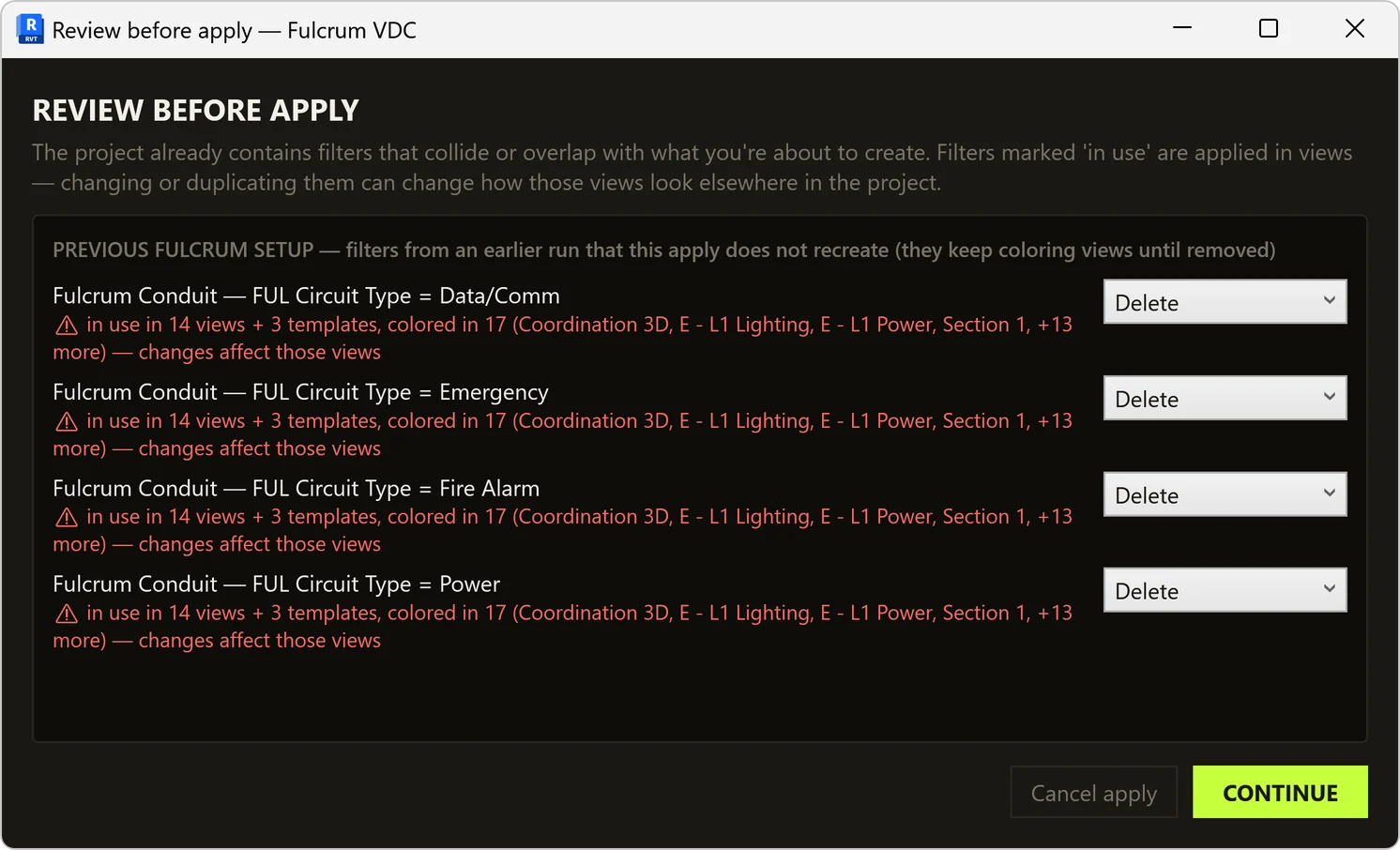
If existing filters overlap yours, or filters from an earlier Conduit Colors run would be left over, a review opens first. Then one transaction creates the filters, adds them to the chosen views and templates and saves the setup, and a summary counts the filters created and the views and view templates updated. The window stays open — click Close when you're done.
The review, when it opens
- Possible overlaps. An existing filter that may color the same elements as one of yours. For each: Skip mine or Create anyway. An exact duplicate starts on Skip mine; any other overlap starts on Create anyway.
- Previous Fulcrum setup. Filters from an earlier Conduit Colors run that this APPLY doesn't recreate. They keep coloring views until they're removed. For each: Keep, usually the default, or Delete.
- In use. Under a filter that is applied in views, a line says how many views and templates carry it and how many of those it colors, with a few of their names — changing it changes those views.
- Cancel apply stops the whole APPLY with nothing changed; CONTINUE goes ahead with your choices.
What you'll see.
Ordinary Revit view filters, already applied.
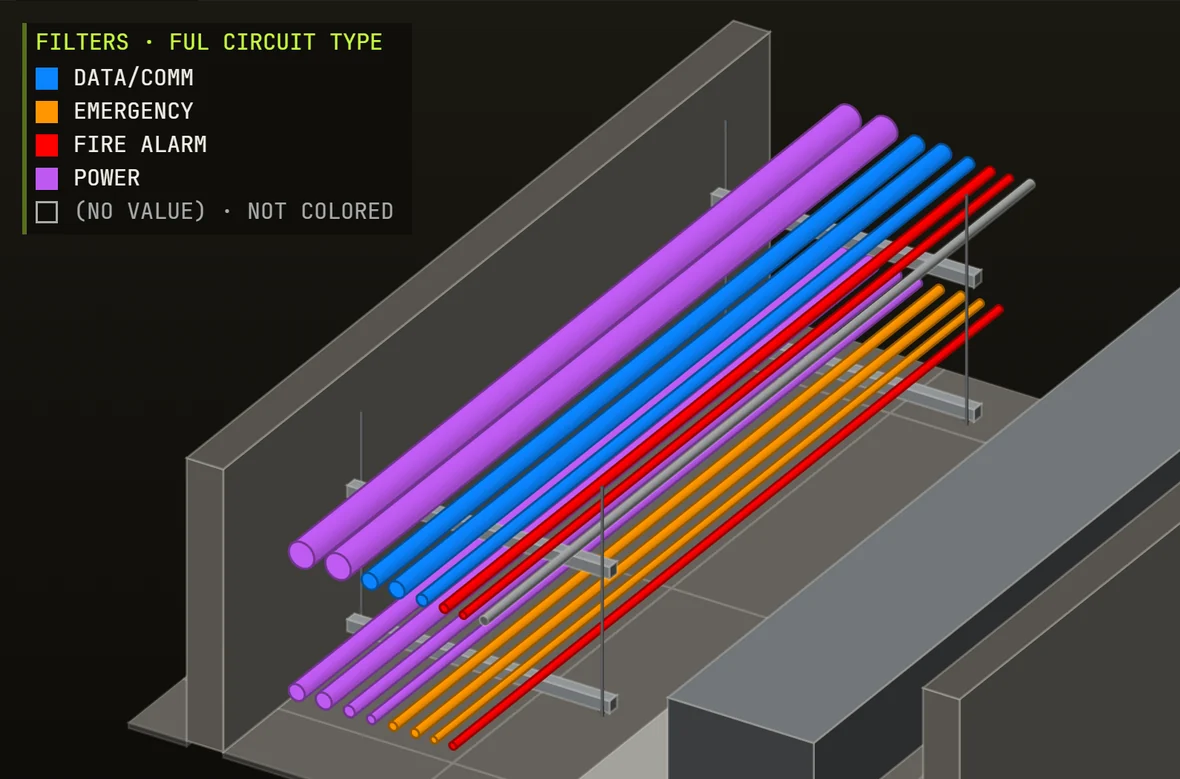
The result is standard Revit view filters, listed in Revit's own Filters dialog like any others — each one already added to the views and view templates you chose, with its color.
First APPLY · by FUL Circuit Type
Second APPLY · Bottom Elevation, in bands
- One view filter per ticked value. Each is named “Fulcrum Conduit — ” plus the parameter and the value, or the band's limits in feet and inches, so they're easy to tell from your own.
- A color override in each view and template. A solid fill in the row's color on surface and cut patterns, the surface transparency you set, and — with Color lines too — projection and cut lines in the same color.
- A summary. “Apply complete.” with the filters created and the views and view templates updated, plus the filters overwritten, skipped or deleted and any failures, when there are some.
- A setup that comes back. Open Conduit Colors again in the same project and it starts from the categories, parameter, colors, bands and targets you last applied.
- A way back. Remove Fulcrum Conduit filters deletes every filter named “Fulcrum Conduit — …” — and nothing else — after asking. You can keep the saved setup or forget it too.
- A list of every view filter in the project. Review model filters… shows each filter's categories and rules, and how many views and templates use it. It only reads.
What it checks, and what it leaves alone.
- View filters, nothing else. Conduit Colors creates view filters and sets their graphic overrides. It never edits a conduit or a parameter value, and it draws no legend, tags or annotation.
- Color shows where a filter is applied. All views and All templates mean every view and every view template in the project that allows graphic overrides, in every discipline — use Selected… to narrow them. The lists are read when the window opens.
- Templates matter. A view whose template controls its filters shows the template's settings, which is why view templates are a target of their own.
- What the review catches. Existing filters that share a category with yours and match one of yours exactly, have no rules, use the same parameter with the same value, or use it with an overlapping numeric range. It doesn't flag a filter on a different parameter that happens to color the same elements, or a filter whose rules can't be read, such as one that uses a “contains” rule.
- Its own filters are updated in place. If this APPLY creates a filter whose “Fulcrum Conduit — …” name already exists, that filter is updated without asking — even one you edited by hand — and the summary counts it as overwritten.
- Earlier setups stay until you delete them. A “Fulcrum Conduit — …” filter that this APPLY doesn't recreate keeps coloring views unless it's set to Delete in the review. Where a kept filter and a new one match the same conduit, Revit shows the one that is higher in the view's filter list — delete the earlier ones to see only the new colors. The summary counts the filters you deleted.
- A filter you hid in a view stays hidden. If one of its filters is already in a view, that filter's Visibility tick there is kept.
- Bands read the raw value. Elevation bands compare the parameter's raw value against your boundaries. Some MEP elevation parameters are measured from the reference level rather than from zero, so check the one you pick — the band editor shows the model's range. Any length parameter can be banded, not only elevations.
- Boundaries. Type 12'-6", 12' 6, 12.5', 150" or a bare number of feet. Boundaries closer than about 1/8" merge. Seed from levels replaces every boundary with the model's levels. A band keeps its color and tick as long as both its edges stay the same.
- Missing a parameter? The list holds only parameters that every chosen category has. In the demo, Bottom Elevation appears once the categories are narrowed to Conduit runs only.
- Values are grouped. Text values that differ only in capitals, or in spaces at the ends, are counted as one value. When you color by Size, a fitting whose ends are all one size is counted with that size and takes its color; a fitting that joins two sizes keeps its own row.
- Colors. Rows get their seed colors from a 24-color palette; after 24 rows the colors repeat. Auto-color re-seeds every row and drops the colors you picked by hand.
- Color lines too. On, projection and cut lines take the row's color as well; line weights aren't changed. Off, only surfaces are filled, so conduit shown as a single line may show no color.
- No solid fill pattern. If the project has no solid fill pattern, surfaces are left uncolored; lines and transparency still apply, and the summary says so.
- Undo. Each APPLY is one undo step, “Fulcrum Conduit Colors — Apply”, and each removal is one step. Undoing an APPLY also undoes the setup it saved.
- Saved in the project. The setup — categories, parameter, ticks and colors, band boundaries, targets and options — is stored in the project file on each successful APPLY, so teammates on the same model get it too. Save the model to keep it. In a workshared model, if another user owns the settings, the filters are still applied and the summary says the settings weren't saved.
- Nothing about your model leaves your PC. Fulcrum Hub sees only your sign-in (with a device ID — a one-way hash of Windows' machine ID — this PC's name and its Windows version), a license check each time you click Conduit Colors, and a count of one for each use that changed the model — the full list is on the Security page.
Per-user install. No admin rights.
- Autodesk Revit 2023, 2024, 2025, 2026 or 2027 on Windows.
- A free Fulcrum account. Sign in inside Revit: Fulcrum VDC tab → Account / About → Sign In — or just click Conduit Colors, which opens the sign-in window if you aren't signed in. No trial, no card. Create the account at hub.fulcrumvdc.com.
- An internet connection when you use it. Each click of the button checks your free license with Fulcrum Hub; offline, it won't open.
- Close Revit first. If the installer says Revit is open, close Revit fully and re-run it.
- First start: Always Load. Revit may ask once whether to load an add-in signed by FULCRUM VDC, LLC — click Always Load, and it won't ask again for Fulcrum tools. (Do Not Load skips it, and the Fulcrum VDC tab won't appear.)
- Installs only this tool. Conduit Colors plus the Account / About button — no other Fulcrum apps. Conduit Run Tagger is its own free download.
- ZIP or .exe. The installer ZIP is the primary download; a code-signed .exe is also available. The .exe lets you tick the Revit versions to install for; the ZIP installs for all five.
- Uninstall. Run the installer again → Uninstall, or run
UNINSTALL.cmdfrom the ZIP. Filters already in your projects stay there — use Remove Fulcrum Conduit filters first if you want them gone.
Button missing after install? It's on the Fulcrum VDC tab, in the
Electrical panel. If you clicked Do Not Load when Revit asked about
the add-in, restart Revit and choose Always Load. With the .exe,
make sure your Revit version was ticked. With the ZIP, close Revit,
run INSTALL.cmd again and check that the “Installed
for:” line lists your version. Then restart Revit. Every run writes
a log to %APPDATA%\Fulcrum\conduit-colors.log.
Still stuck? Send us a message.
Questions, answered.
What can I color by?
Any parameter Revit can filter the chosen categories by — the same list Revit's own filter dialog offers, limited to parameters that every chosen category has. Click one and each distinct value in the model is listed with its element count. A length parameter can also be split into elevation bands.
Does it only work on conduit?
No. It starts on conduit and conduit fittings, with presets for conduit runs only, cable tray, Electrical — all (conduit, cable tray, electrical equipment and fixtures, lighting fixtures and devices), piping and duct. Custom… lets you tick any model categories Revit can filter. Whatever the categories, the filters it creates are named “Fulcrum Conduit — ” plus the parameter and value.
Which views get the colors?
By default, every view and view template in the project that allows graphic overrides, in every discipline. Choose Selected… to tick the views or templates you want, or None to leave view templates alone. A view whose template controls its filters shows the template's settings, so include that template.
What if the project already has view filters?
Before anything is created, a review lists existing filters that share a category with yours and may color the same elements: an identical filter under another name, a filter with no rules, the same parameter with the same value, or an overlapping numeric range. For each one you choose Skip mine or Create anyway. Filters from an earlier Conduit Colors run that this one doesn't recreate are listed to Keep or Delete. Not flagged: a filter on a different parameter, and filters whose rules can't be read. A “Fulcrum Conduit — …” filter that this run creates again is updated in place without asking.
How do elevation bands work?
Choose a length parameter, then Elevation bands. The boundaries start from the model's levels, and you can add your own — type 12'-6", 12.5' or 150" and press Enter — or remove them. Each gap between boundaries is a band with its own color, plus one below the first boundary and one at or above the last. Bands compare the parameter's raw value, so check that it reads as an absolute elevation in your model: some MEP elevation parameters are measured from the reference level.
Does it change my model?
It creates view filters, adds them to the views and view templates you chose with a color override, and saves its own setup in the project. It never edits a conduit or a parameter value, draws no legend, tags or annotation, and never changes or deletes a filter whose name doesn't start with “Fulcrum Conduit — ”.
How do I undo it, or take the colors off again?
Each APPLY is one undo step. Later, click Remove Fulcrum Conduit filters: it deletes every view filter named “Fulcrum Conduit — …”, and their overrides disappear from every view and template. Filters made by you or by other tools are untouched. You choose whether the saved setup stays in the project or is forgotten too.
Do I need Conduit Run Tagger to use it?
No. Conduit Colors works on any parameter Revit can filter. The demo colors by FUL Circuit Type, one of the shared parameters the free Conduit Run Tagger writes onto the conduit and fittings of a run — along with the run's panel, circuit and homerun — so the two work well together. Each one installs on its own.
Which Revit versions are supported?
Revit 2023, 2024, 2025, 2026 and 2027, on Windows.
Is it free? Do I need an account?
It's free. You need a free Fulcrum account and sign in inside Revit: Fulcrum VDC tab → Account / About → Sign In. No trial, no card. It needs an internet connection when you use it — each time you click Conduit Colors, your free license is checked with Fulcrum Hub.
SmartScreen warned me about the download.
The .exe is code-signed as Fulcrum VDC, LLC, so Windows names us as the publisher instead of showing “Unknown Publisher.” SmartScreen can still flag a brand-new build until enough people have downloaded it — choose More info → Run anyway. Confirm the signature under Properties → Digital Signatures.
1.0.0 — first public release.
Every tool's full revision history lives in the changelog.
- Conduit Colors button on the Fulcrum VDC tab, in the Electrical panel.
- Scans the model for the distinct values of any parameter Revit can filter, with element counts and a “(No value)” row.
- Six category presets — conduit, conduit runs only, cable tray, electrical, piping and duct — or a custom category list.
- Elevation bands for length parameters, seeded from the model's levels, with editable boundaries.
- One view filter per ticked value or band, with a solid-fill color override, optional line color and surface transparency.
- Applies to all or selected views and view templates in one transaction, with a summary of what was created and updated.
- A review before apply for overlapping filters and earlier Conduit Colors setups, and a read-only list of every view filter in the project.
- The setup is saved in the project; Remove Fulcrum Conduit filters takes its filters out again.
- Revit 2023–2027. Free with a Fulcrum account; needs an internet connection when you use it.
Color the rack.
One view filter per value — in every view and view template you choose, in one APPLY.
Download freeAutodesk and Revit are trademarks of Autodesk, Inc. Fulcrum VDC, LLC is not affiliated with or endorsed by Autodesk.